Incident.io Integration

StrongDM integration with Incident.io that allows on-call members of Incident.io schedules to receive access to specified resources within StrongDM while on call.

Many organizations manage incident response software that contains groups of users that are on call at any given time. The Incident.io integration allows your StrongDM organization to connect directly to Incident.io using an API key and sync selected on-call schedules. Each time the integration syncs (every 15 minutes, or when triggered manually), it checks which Incident.io users are on call on the selected schedules, and if it matches those users to StrongDM users, it adds them to a group in StrongDM.

Once those groups exist within StrongDM, admins can then grant them standing access to resources using roles. This would ensure that people who are on call from that schedule always have access to those resources through StrongDM. Admins can also define access workflows to allow those users who are on call to request access to resources for a limited time. Those requests can be configured to be approved either manually by selected approvers or automatically. Either way, the requests are logged and interactions audited.

Access can be made even more granular through the use of access policies.

Prerequisites

  • Administrator permission level for your StrongDM user in order to create and configure the integration and grant access to the resulting groups.

  • An Incident.io user with appropriate privileges to create and manage API keys.

Incident.io Setup

The Incident.io integration uses an API key to sync on-call schedules with StrongDM. Follow these steps to configure Incident.io for StrongDM:

  1. Log in to Incident.io as an administrator.

  2. Go to Settings > API Keys.

  3. Click Create API Key.

  4. Enter a meaningful Name that is useful to your Incident.io administrators.

  5. Ensure that the API key has permission to read schedules.

  6. Create the key and copy the API key value immediately. You will use this API key in the StrongDM Admin UI when connecting the integration.

circle-exclamation

StrongDM Setup in the Admin UI

  1. In the StrongDM Admin UI, navigate to the Integrations page.

  2. Under Incident Management, click Connect on the Incident.io item.

  3. Fill in the required fields in the pop-out window.

Name

Required

Name for the integration, such as "StrongDM Integration"

API Key

Required

API key for Incident.io

User Lookup Attribute

Required

Email or Identity Alias depending on whether you are using StrongDM user emails to correlate with Incident.io users, or using StrongDM Identity Aliases to correlate to Incident.io users

Once completed, groups from Incident.io are imported.

circle-info

Note that if you wish to use Identity Alias for the User Lookup Attribute, you need to create an Identity Set for use with Incident.io. This Identity Set should contain Identity Aliases that exactly match each user's Incident.io ID (for example, 01AB23C4DEFGHIJ5KLMNOP6Q).

Manage the Integration in the Admin UI

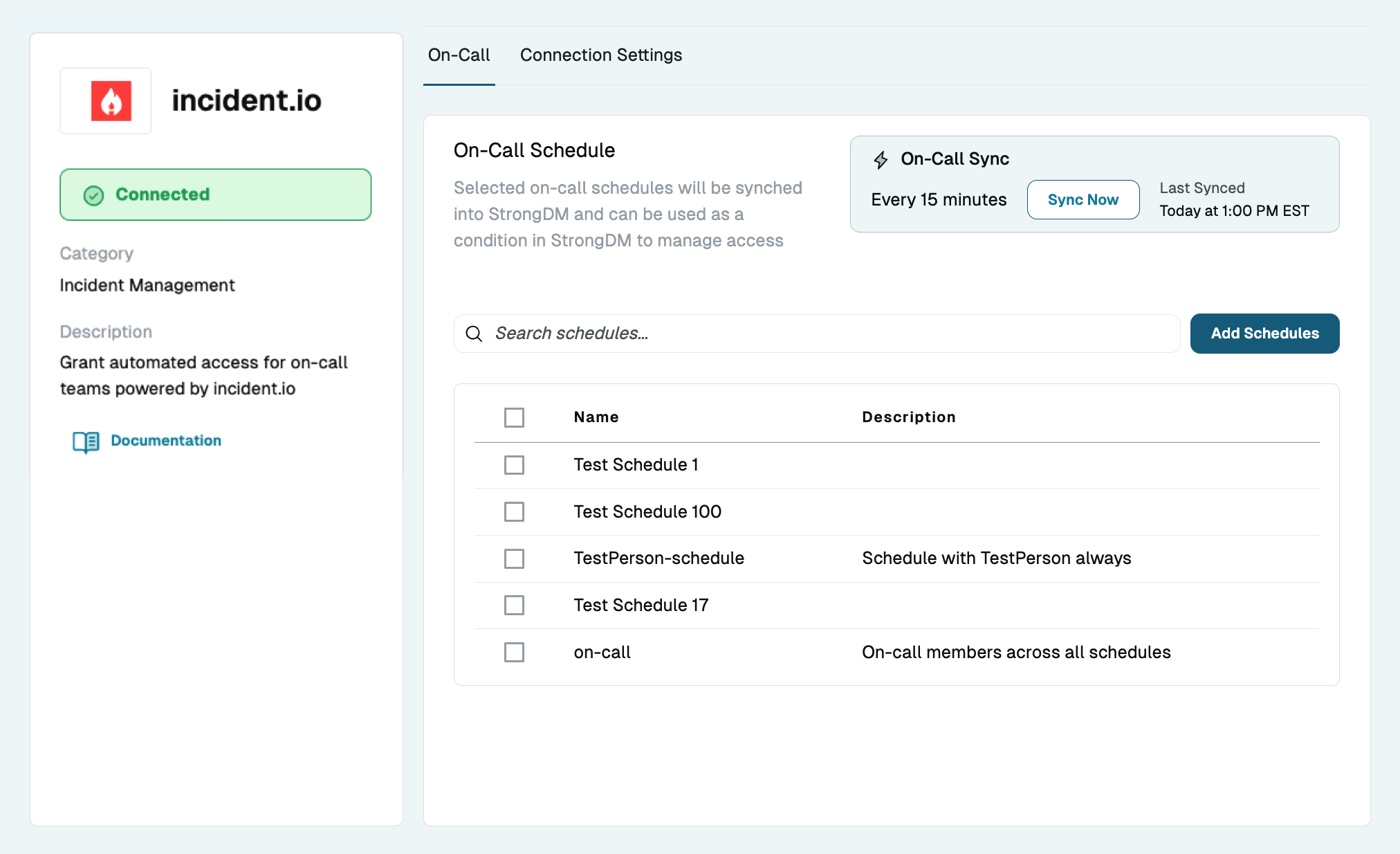
You can manage the integration you just set up by navigating in the Admin UI to Integrations, clicking on the Connected Services tab, and selecting the Incident.io integration you want to manage. On the integrations page, the left sidebar shows whether the integration is successfully connected. You can also see general information about the Incident.io integration itself and a link to the documentation.

On-Call

In the On-Call tab, you can see the schedules that are being synced by the integration.

Add Schedules

To add schedules to this list, select Add incident.io Schedule and then choose the schedules you wish to sync to StrongDM. Once schedules are selected, StrongDM automatically creates and manages a group for each selected schedule containing only the Incident.io users currently on call for that schedule. On-call users who do not match a StrongDM user are ignored. These groups can then be granted access through Roles, Access Workflows and Approval Workflows. That access can be further limited based on context or actions through Policies.

Example:

  • Alice, Bob, Carlos, and Deanna are engineers that take on-call shifts on the Incident.io schedule named "TestSchedule."

  • Their StrongDM administrator opens the configuration for their existing Incident.io integration, goes to the On-Call tab, and selects Add Schedules. From the list of schedules that are found in Incident.io, the admin selects TestSchedule to add it to StrongDM.

  • The admin can navigate to Principals > Groups in StrongDM and view the TestSchedule group. This group is identified in the list as a Incident.io-managed group. If Alice, Bob, Carlos, and Deanna are existing StrongDM users with email addresses that match their Incident.io accounts, but only Alice and Bob are currently on-call in the TestSchedule in Incident.io, Alice and Bob should now also be listed in the TestSchedule group in StrongDM. When that shift ends, and Carlos and Deanna enter on-call status for that schedule, the StrongDM TestSchedule group should now have Carlos and Deanna in it. Alice and Bob would then be removed if they were no longer on-call.

  • The admin can open the group and select the Roles tab and add roles to the group, which gives members of the group access to whatever resources that the selected roles have access to. See the Roles page for more information.

  • For just-in-time access, the admin can add a new role with no standing permissions to the TestSchedule group, then set up an access workflow that grants the users of this particular role the ability to request access to various resources as needed while on call. This can even be approved automatically, with the request process serving only to provide an audit trail when users ask for and receive access. See the Access Workflows page for more information.

  • As members rotate off of on-call duty, they are removed from the TestSchedule StrongDM group during the next integration sync (which runs automatically every 15 minutes or can be manually triggered by an admin by clicking the Sync Now button on the On-Call tab).

Remove Schedules

Schedules that are currently synced with StrongDM can be removed by selecting them in the list and then clicking the Remove Schedules button that appears in the bottom left of the screen when schedules are selected.

Connection Settings

The Connection Settings tabs contains the same settings that were configured in the Admin UI Setup section. The Name is read-only here, but the API Key can be replaced if regenerated in Incident.io, and the User Lookup Attribute can be changed if you alter how you link StrongDM users and Incident.io users.

Manage Access for Incident.io Groups

Groups imported from Incident.io can be added to Roles like any other group or featured in access workflows enabling various on-call Incident.io groups to gain access. See the following sections for information about how to further manipulate access with Access Workflows, Approval Workflows, Policies, and Roles.

Troubleshooting

  • A user does not appear in the group:

    • Confirm that the user exists in StrongDM.

    • Confirm that the user's email matches their email in Incident.io exactly (or that their Identity Alias for the selected Identity set matches their Incident.io ID exactly, if using Identity Aliases for user matching).

    • Confirm that the user is currently on-call in Incident.io.

  • Schedules don’t show up: Confirm that API key has permission to read schedules

  • On-call membership doesn't show recent changes: Wait (up to 15 minutes) or trigger a manual sync by clicking the Sync Now button on the On-Call tab.

  • Integration stopped syncing after updating keys in Incident.io: Update the API Key field in StrongDM under Connection Settings with the new API key.

Last updated

Was this helpful?